
PiyyCode
Describe code in a chat box and run it in a live built-in workspace terminal
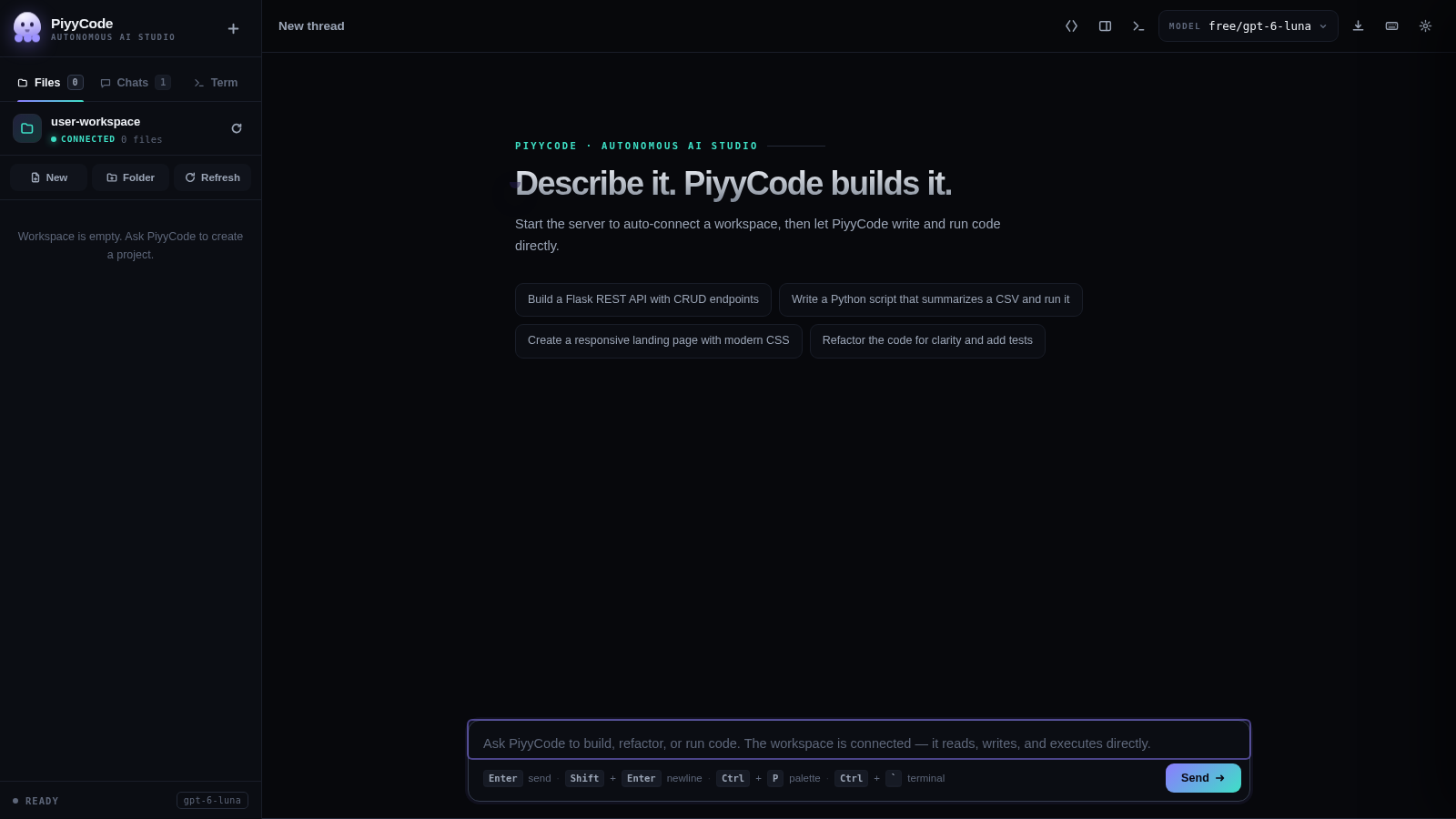
PiyyCode is a browser-based autonomous AI coding studio contained in a single page. The left sidebar hosts three tabs for Files, Chats and Term, the middle column is a chat composer and conversation view, and the right column is an always-open settings panel. The workspace is a server-side folder shown as user-workspace at /app/user-workspace and marked connected, with New, Folder and Refresh controls. Users describe a task in the composer or pick one of four example prompts, choose a model from the built-in free set or enable their own OpenAI-compatible provider, then adjust the system prompt, agent behaviour and sampling parameters. A built-in terminal executes Python, Node and shell commands against the workspace and prints real output with an exit code. Chats are stored as threads that can be searched, reopened or deleted, and the whole configuration can be cleared from the Data section.
Highlights
Live terminal
Runs real commands
Connected workspace
Server side file tree
Model picker
11 free models
Provider gateways
13 switchable options
Preset prompts
Six system personas
Agent controls
Tools and thinking
How to Use
Open the studio and check the workspace
Load the page and look at the left sidebar. The workspace folder, its path and its connection state are listed at the top; when it is empty the panel says the workspace is empty and suggests asking PiyyCode to create a project. Use the Files, Chats and Term tabs to switch between the file browser, saved conversations and the terminal.
Pick a model and adjust settings
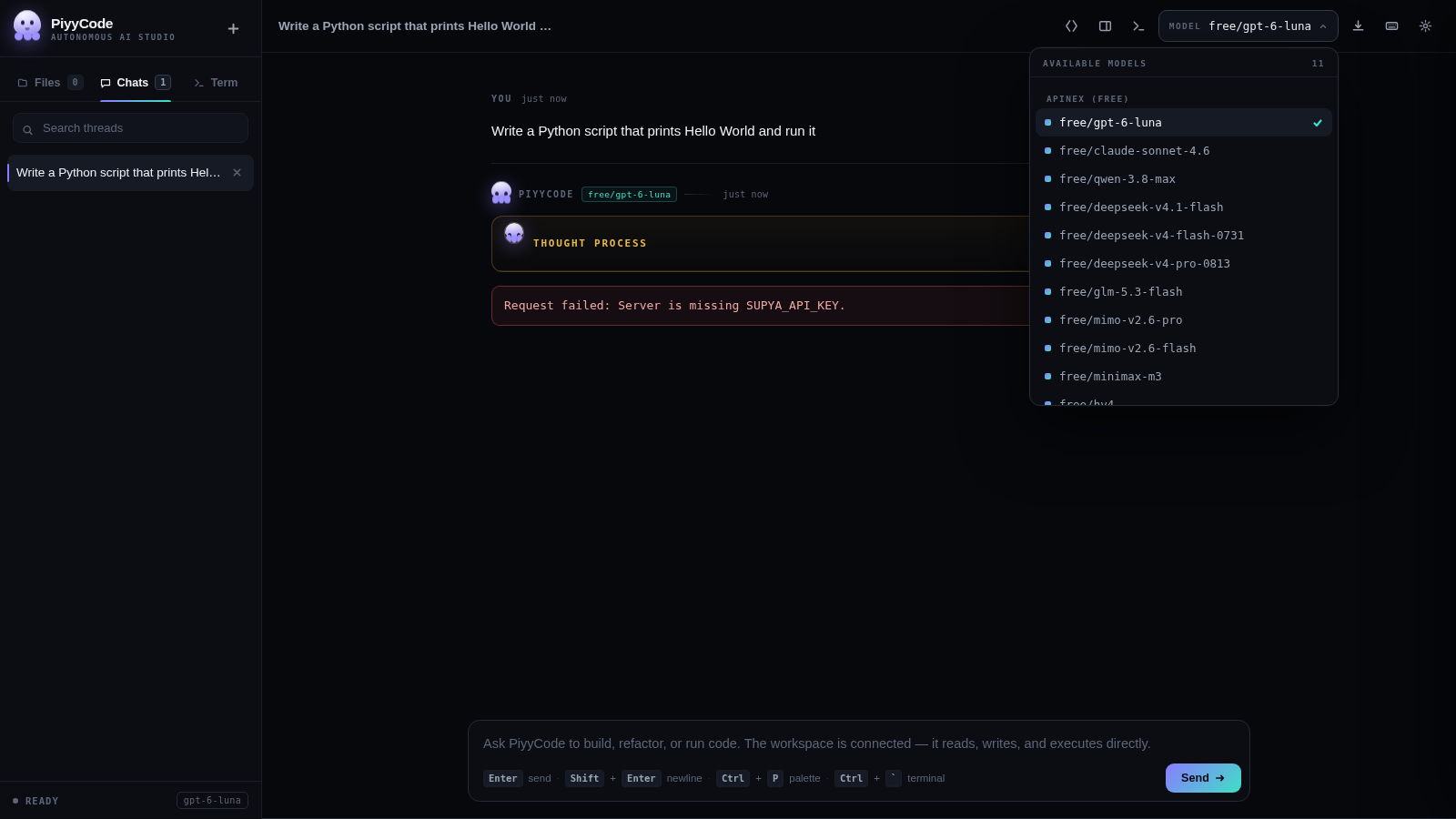
Click the model button in the top bar to open the available models list, which groups the built-in free models and marks the active one with a check. In the right-hand settings panel you can edit the system prompt or apply a preset such as Full-stack or Concise, toggle agent options like Show thinking and Auto-write & auto-run, and move the Temperature, Max tokens and Top P sliders. Provider switches let you enable additional OpenAI-compatible gateways with your own key.
Describe a task in the composer
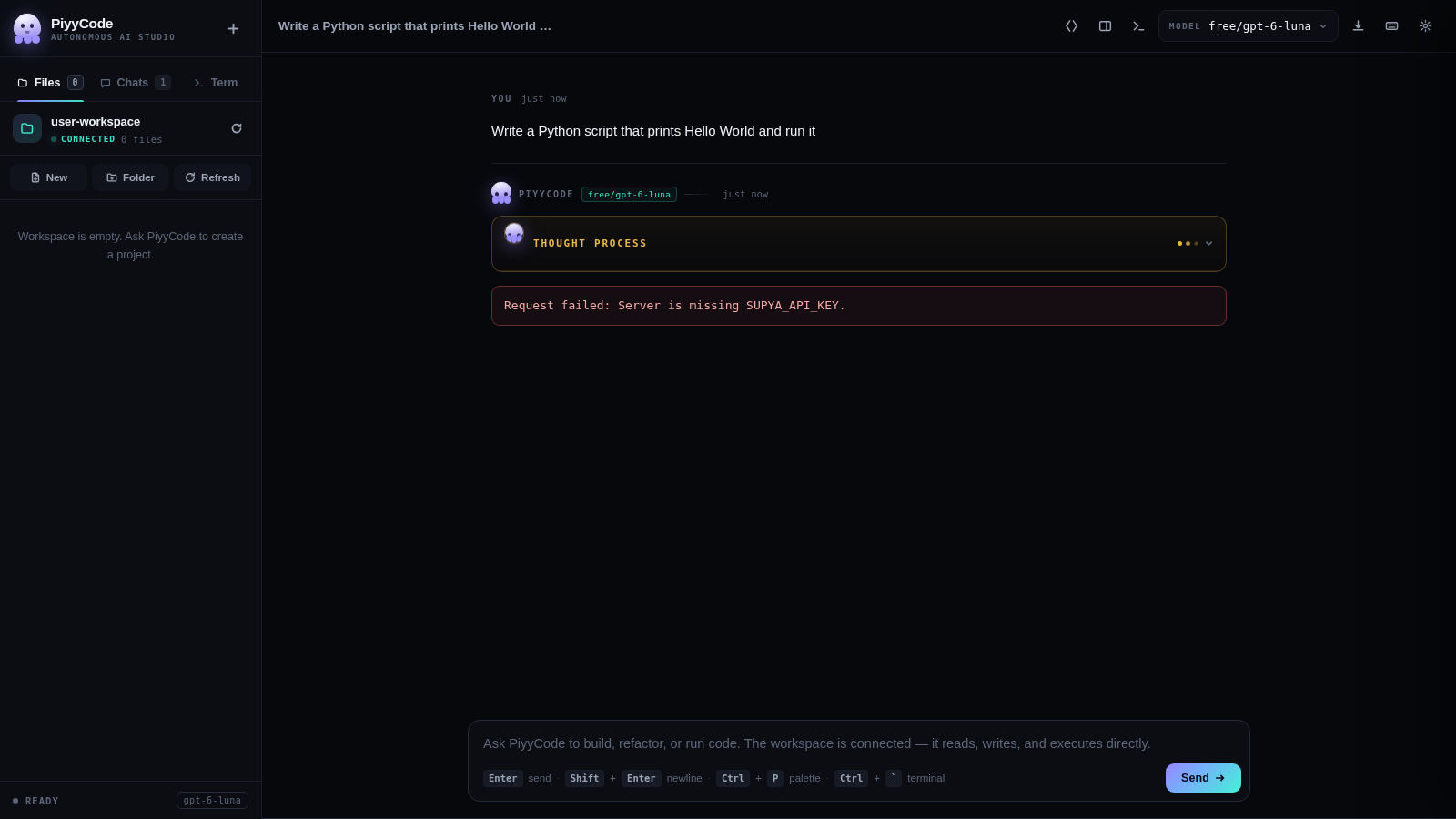
Type your request into the composer at the bottom of the middle column, or click one of the example prompt pills to fill it in. Press Enter to send or use the Send button. The conversation shows your message, then the assistant reply with a thought-process panel when thinking is enabled; the current model name is displayed next to the reply.
Run code in the terminal
Open the Term tab or the terminal at the bottom of the page. Type a command into the input and press Enter or the Run button. The panel prints the command, its standard output and an exit code with a timing value, for example checking the interpreter version or listing the workspace directory. Use the Clear and Close controls to reset or hide the terminal.
Similar Sites
 6
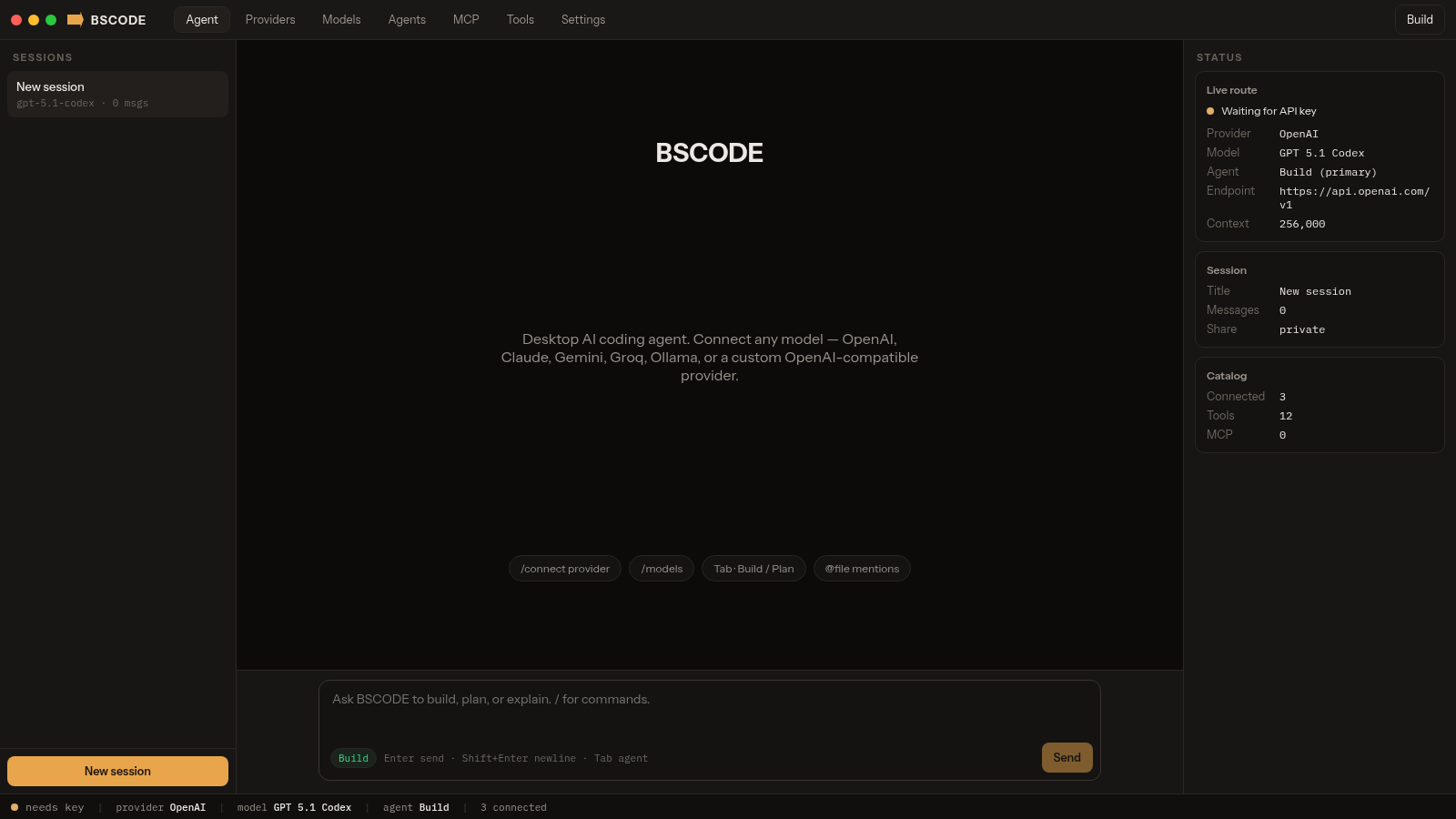
6BSCODE
Desktop AI coding agent that connects any model, including custom providers.
 16
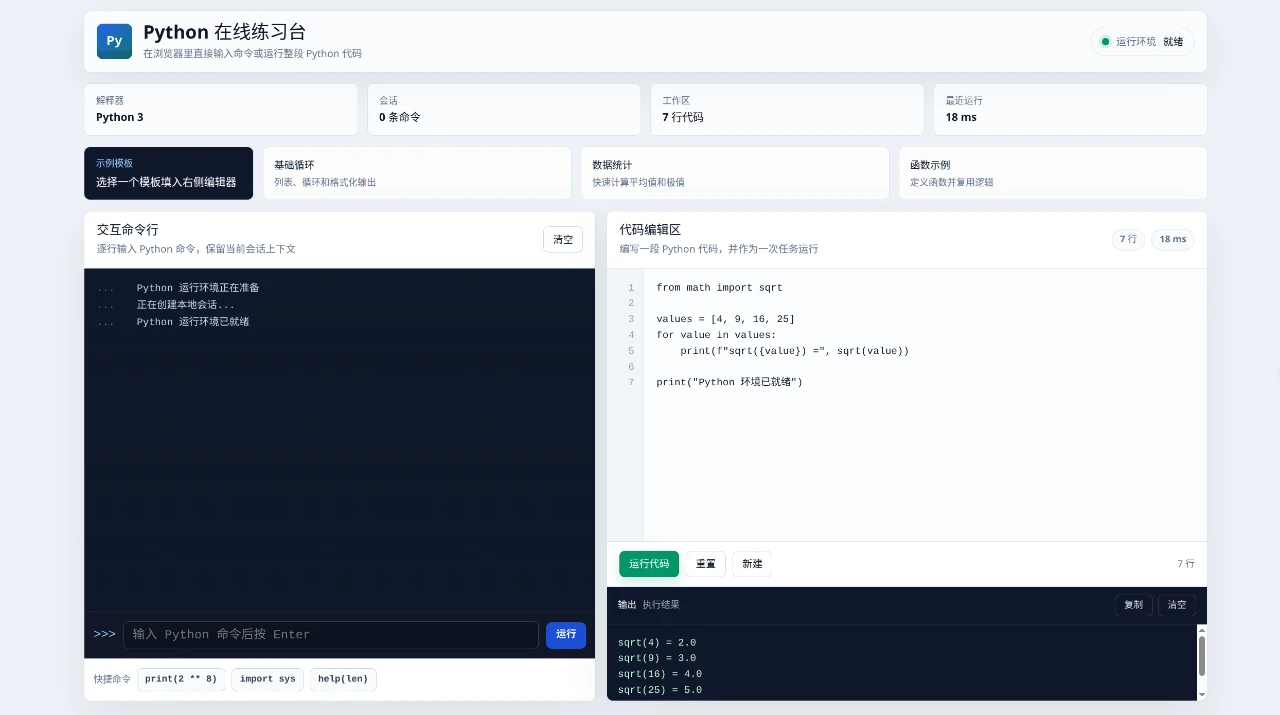
16Web Python Emulator
Python Online Practice Lab is an interactive browser-based workspace for trying Python without a separate installation.
 19
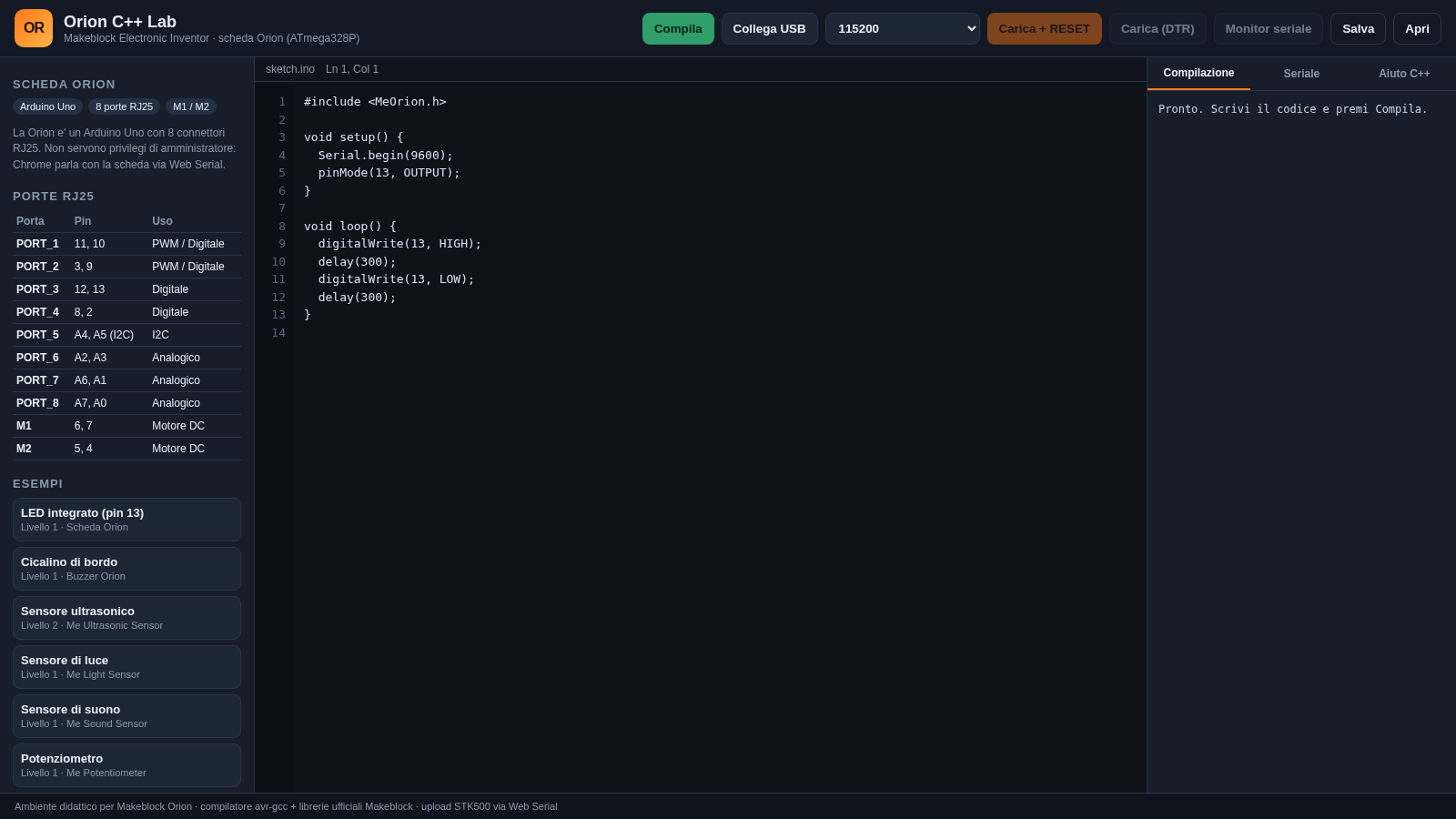
19Orion C++ Lab
Compila e carica sketch C++ sulla scheda Makeblock Orion dal browser.
 14
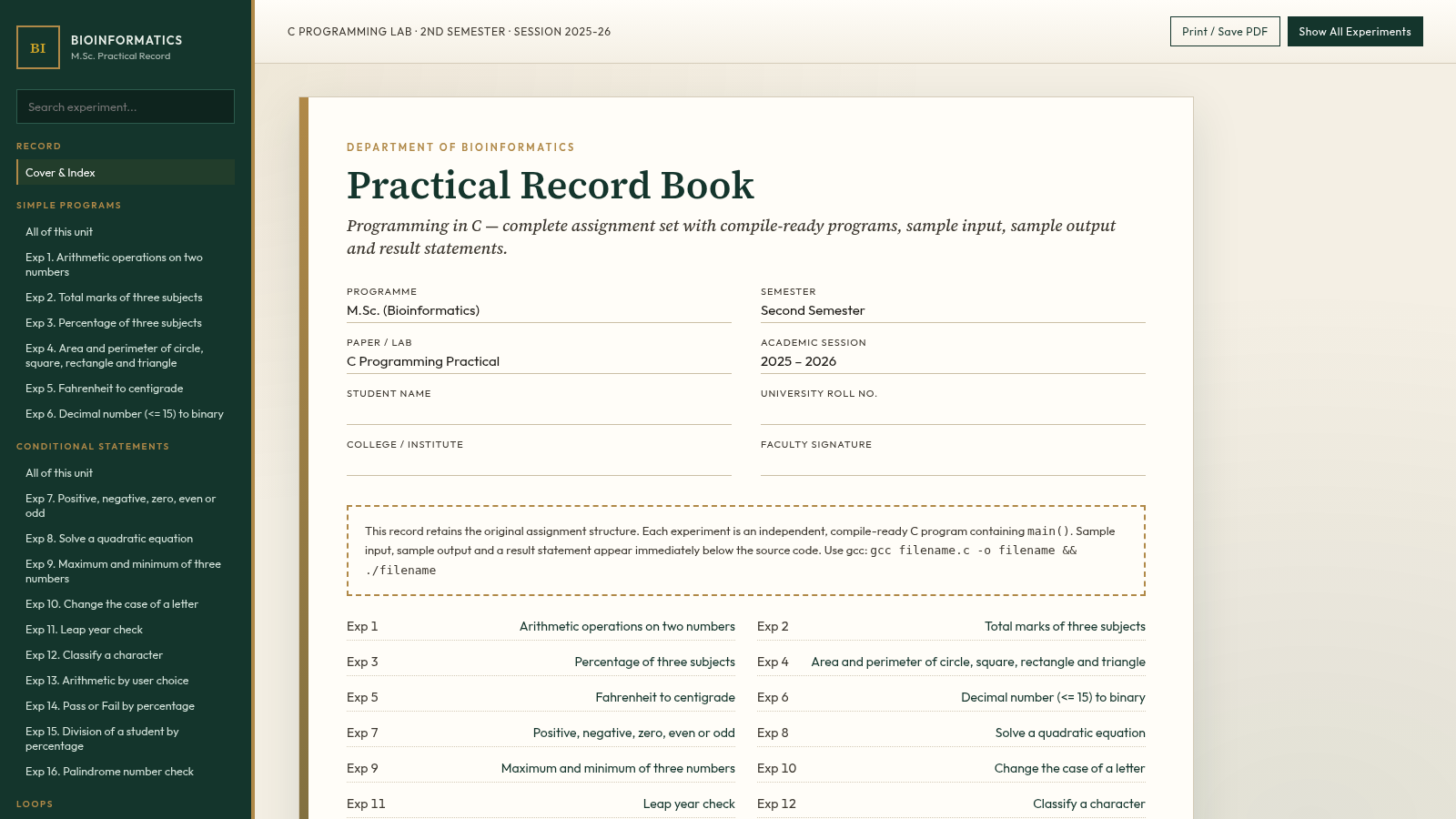
14C Programming Practical Record
M.Sc. Bioinformatics 2nd Sem C lab record with 105 compile-ready programs.
 30
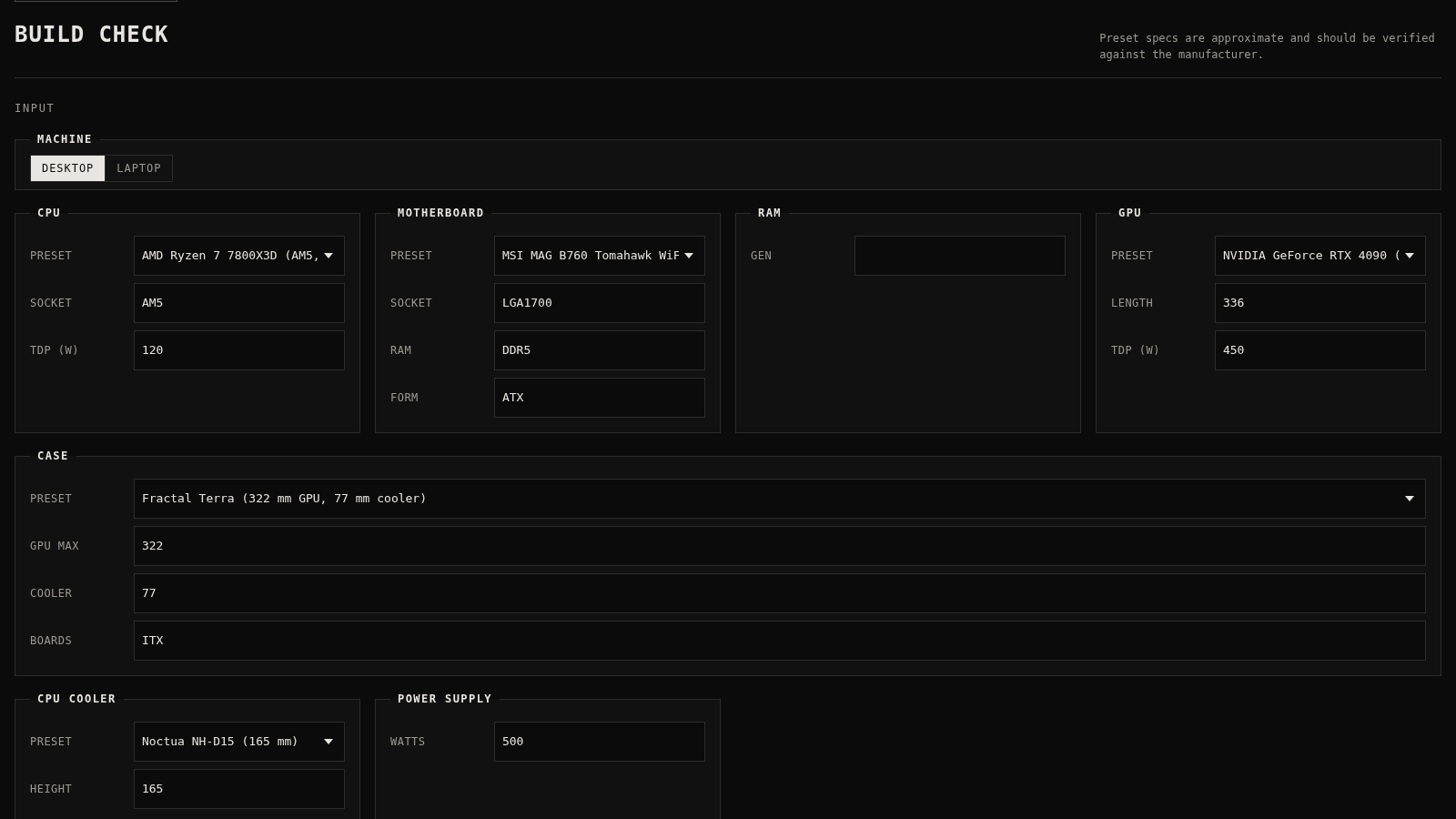
30PC Build Checker
Check desktop and laptop PC builds for compatibility, scores, and upgrades.
 22
22AuroraOS
A desktop OS inside a single HTML file - apps, terminal, games, music