
keyr
Generate email aliases and strong passwords inside a locally encrypted browser vault.
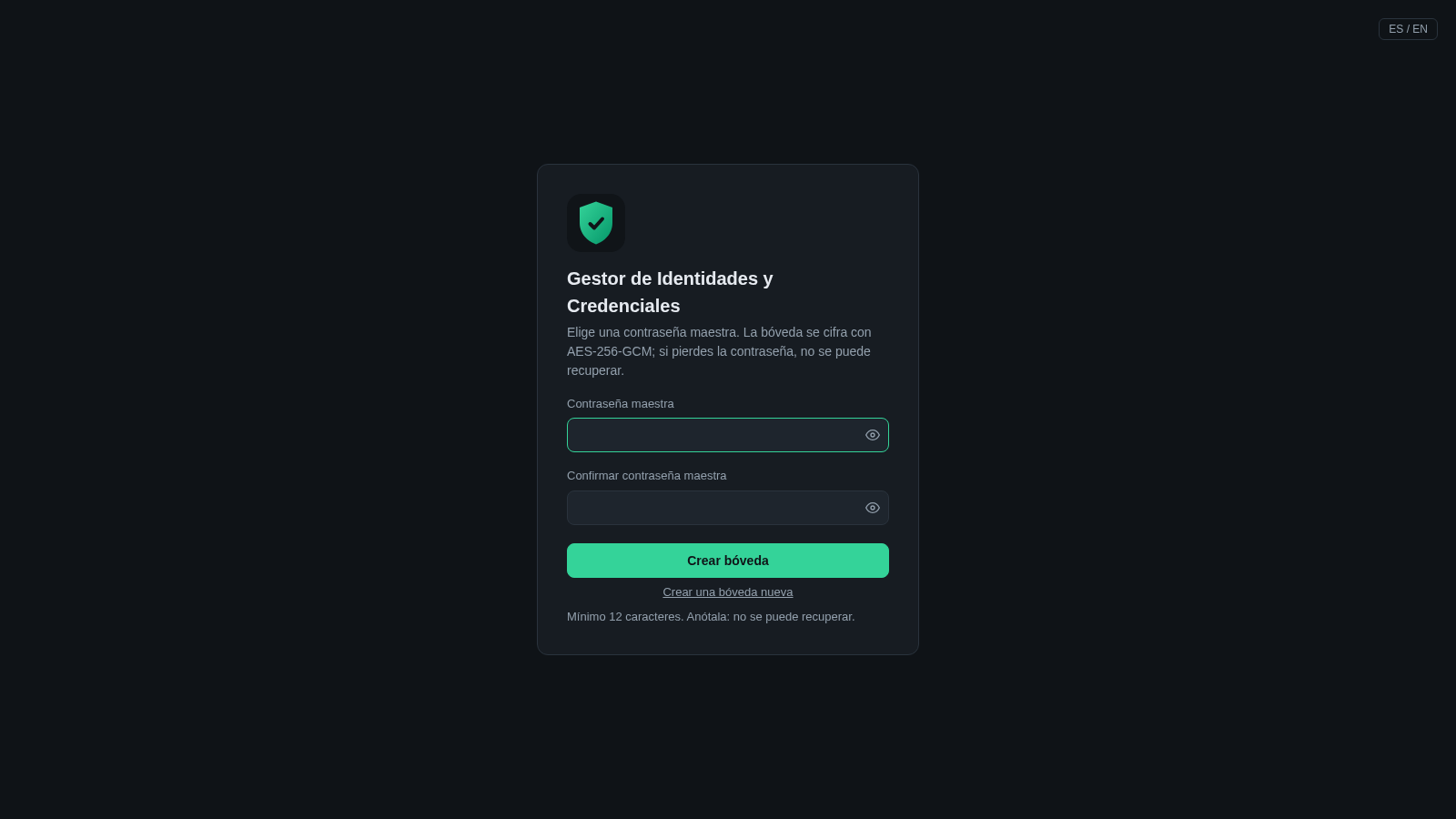
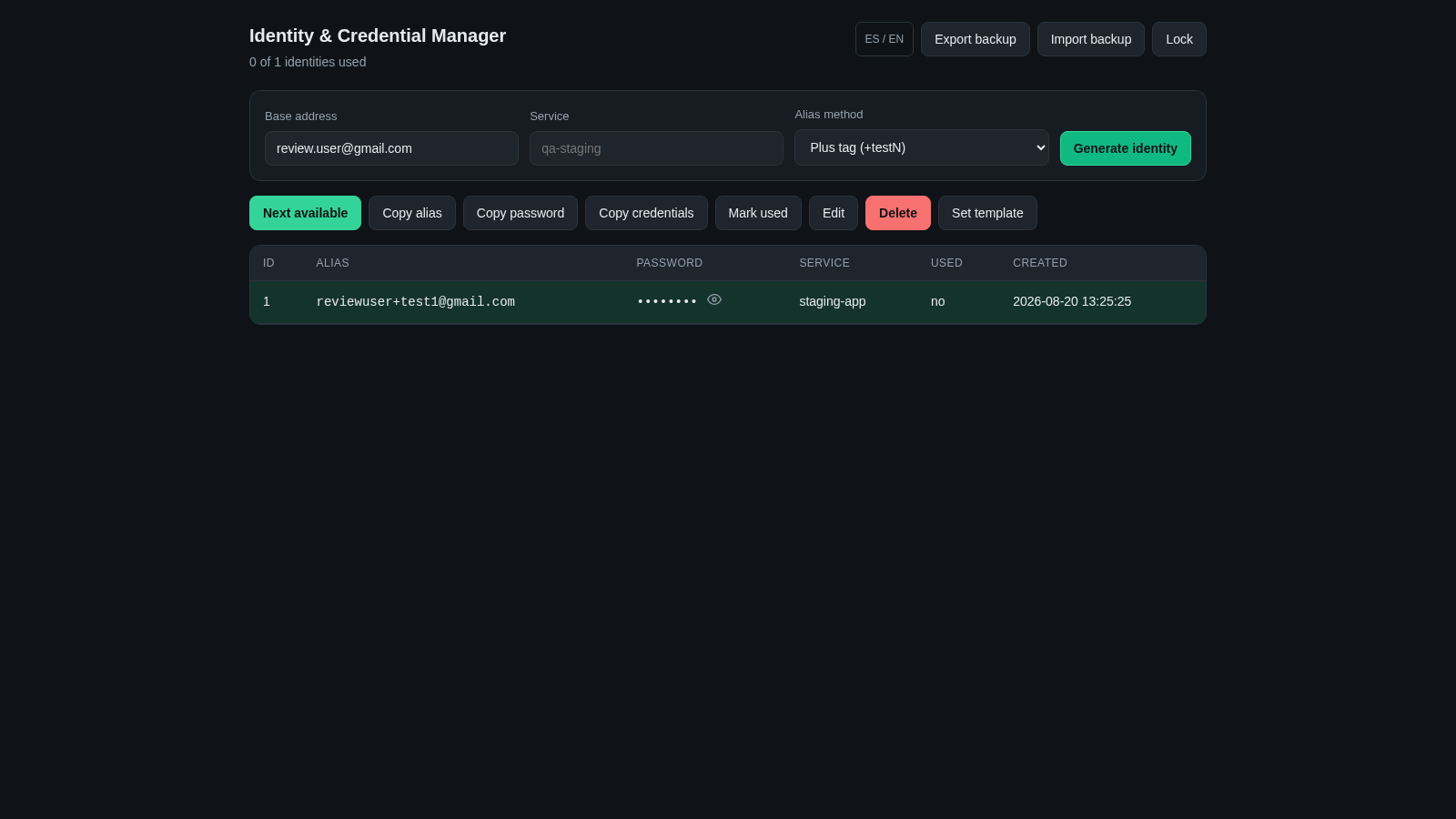
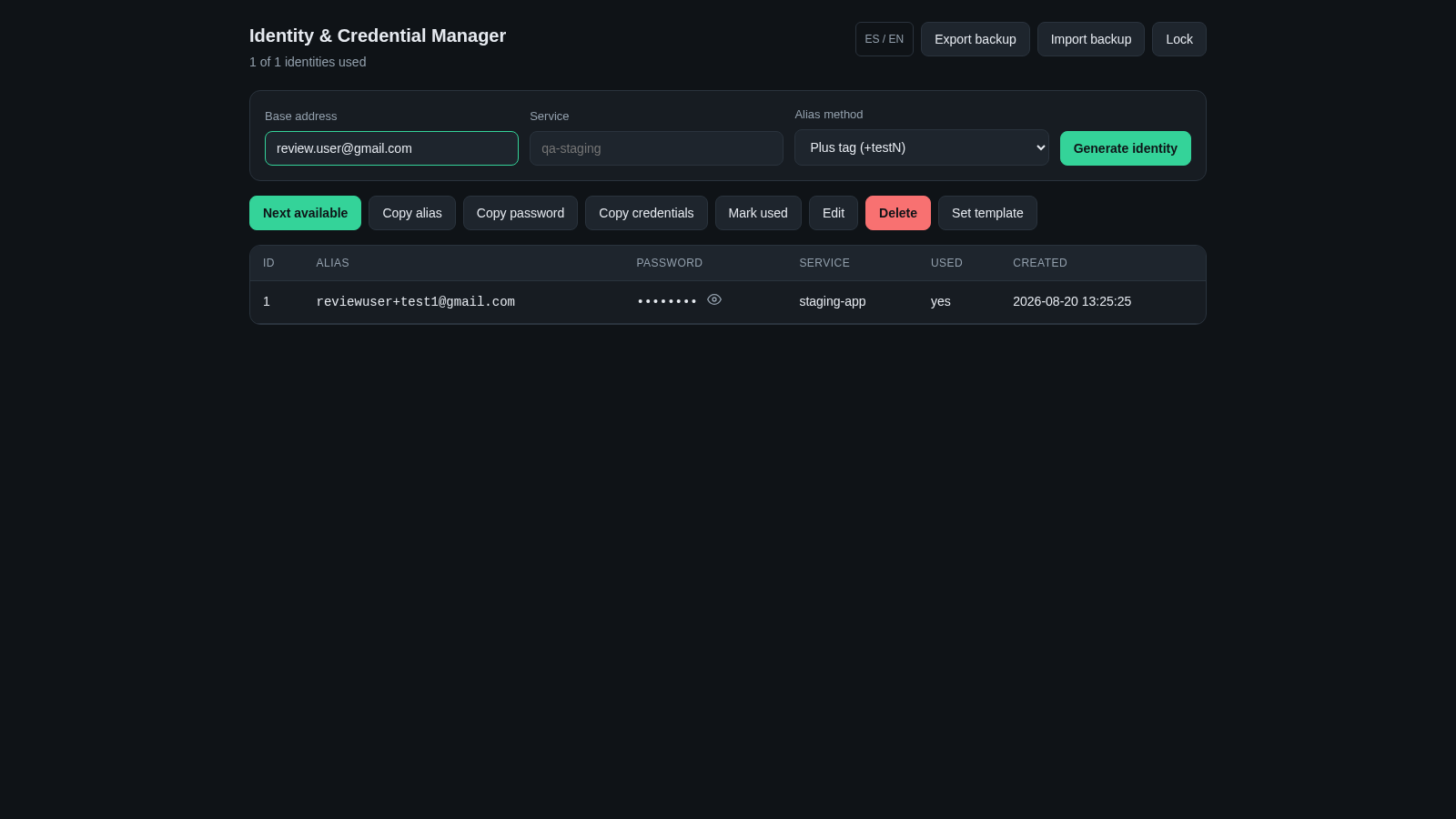
Identity & Credential Manager is a bilingual browser utility for creating and organizing disposable login identities. A user first creates a vault with a master password of at least 12 characters. After unlocking it, the user can enter a base email address and service label, choose Gmail plus-tag or dot-based alias generation, and create a record with a generated strong password. Records appear in a table with service, usage state, and creation time. Selected records can be copied, marked as used, edited, deleted, or formatted with a reusable clipboard template. The vault is stored locally in IndexedDB, protected with AES-256-GCM encryption, and can be locked or transferred through encrypted backup export and import.
Highlights
Encrypted local vault
AES-GCM browser storage
Two alias methods
Plus tags and Gmail dots
Strong passwords
Generated per identity
Usage tracking
Mark and find open aliases
Portable backups
Export and import the vault
Bilingual interface
English and Spanish controls
How to Use
Create the encrypted vault
Choose a master password containing at least 12 characters, enter it again for confirmation, and select Create vault. The page derives the vault key and opens the credential manager. Keep the password separately because the interface states that it cannot be recovered.
Generate an identity
Enter a base email address and an optional service label, then choose either the plus-tag method or the Gmail dot method. Select Generate identity to add a new alias and generated password to the table, where its service, status, and creation time are shown.
Use and maintain records
Select a row before using the toolbar. You can copy the alias, password, or combined credentials, mark the identity as used, edit its service label, delete it, or define a clipboard template. The Next available action helps locate an unused record.
Lock and reopen the vault
Select Lock when leaving the manager. The application returns to a master-password screen while retaining encrypted data in the browser. Enter the same master password and select Unlock to restore access to the saved identities.
Move or preserve the vault
Use Export backup to save a portable encrypted copy. On another browser or after resetting local data, use Import backup and then unlock it with the backup vault's master password. Import replaces the current local vault, so export anything important first.
Similar Sites
 94
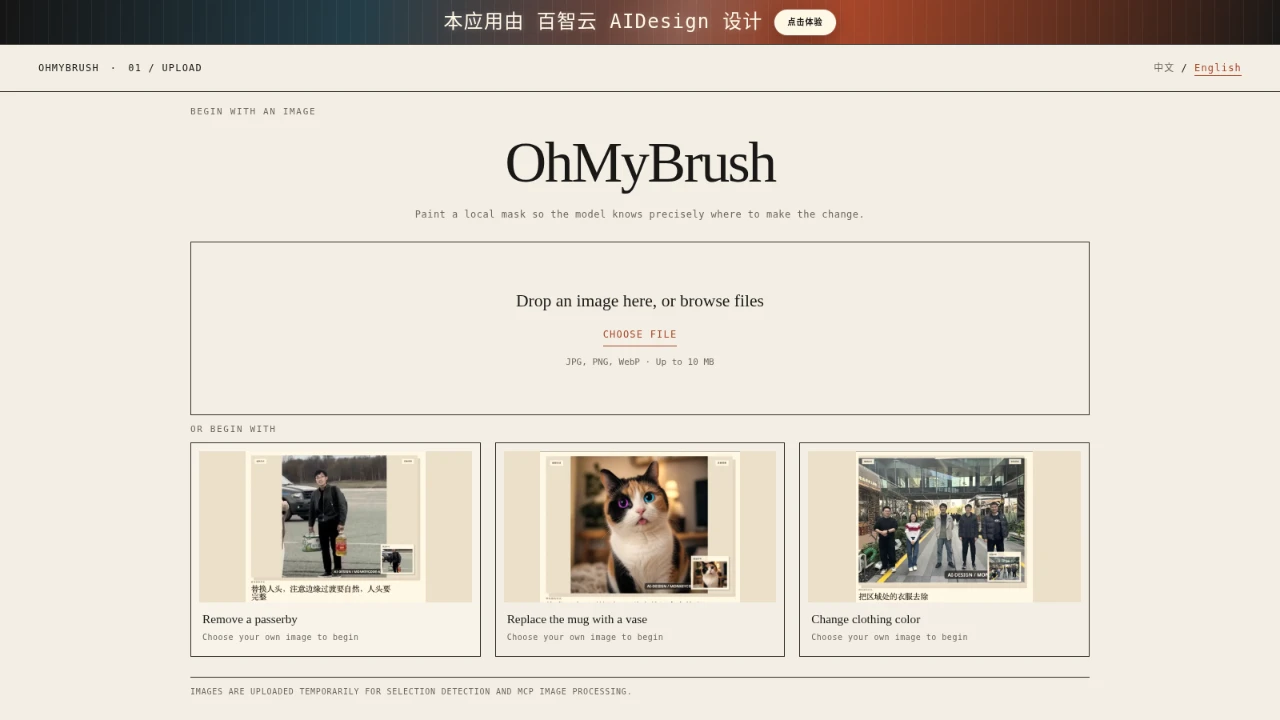
94OhMyPS - AI Image Editor
Brush, describe, and quickly edit part of an image with AI.
 81
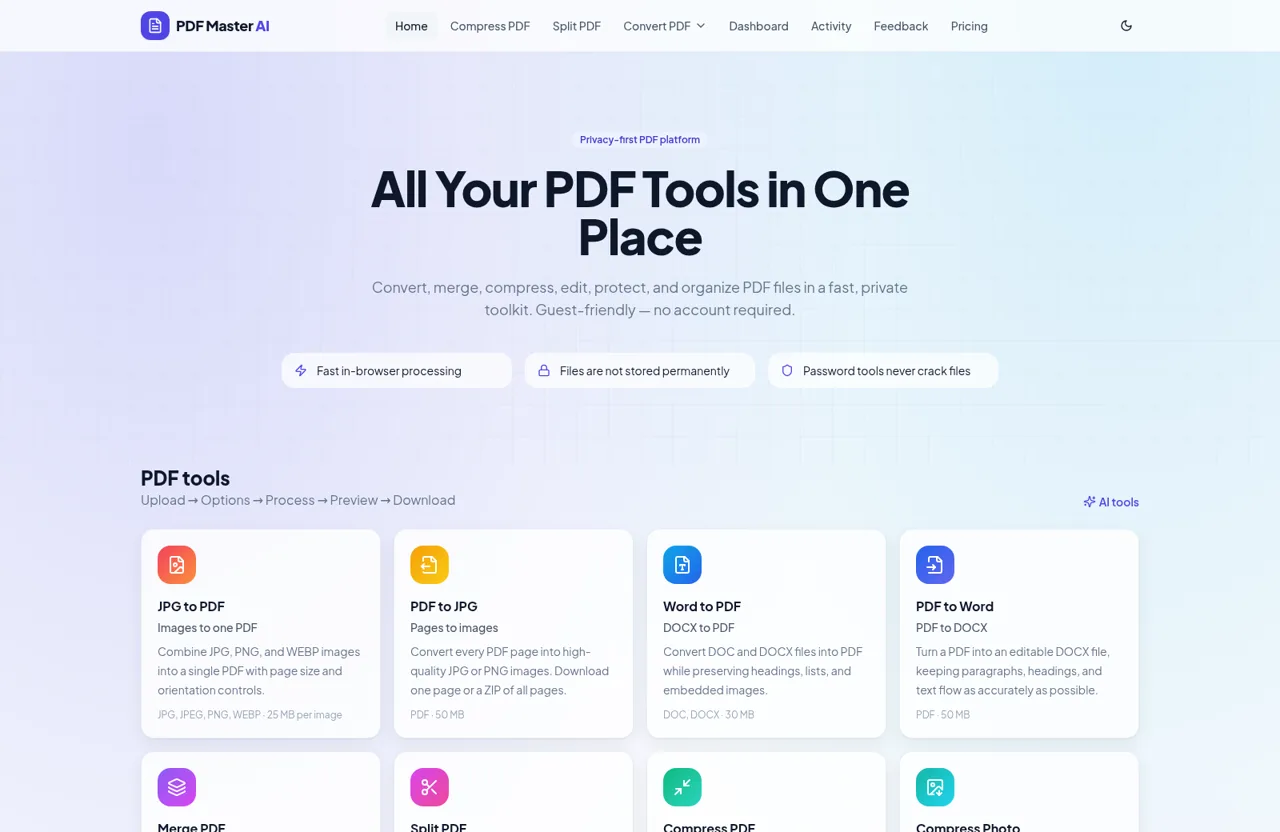
81PDF Master AI
Private in-browser PDF toolkit to convert, merge, compress, edit, and protect files.
 77
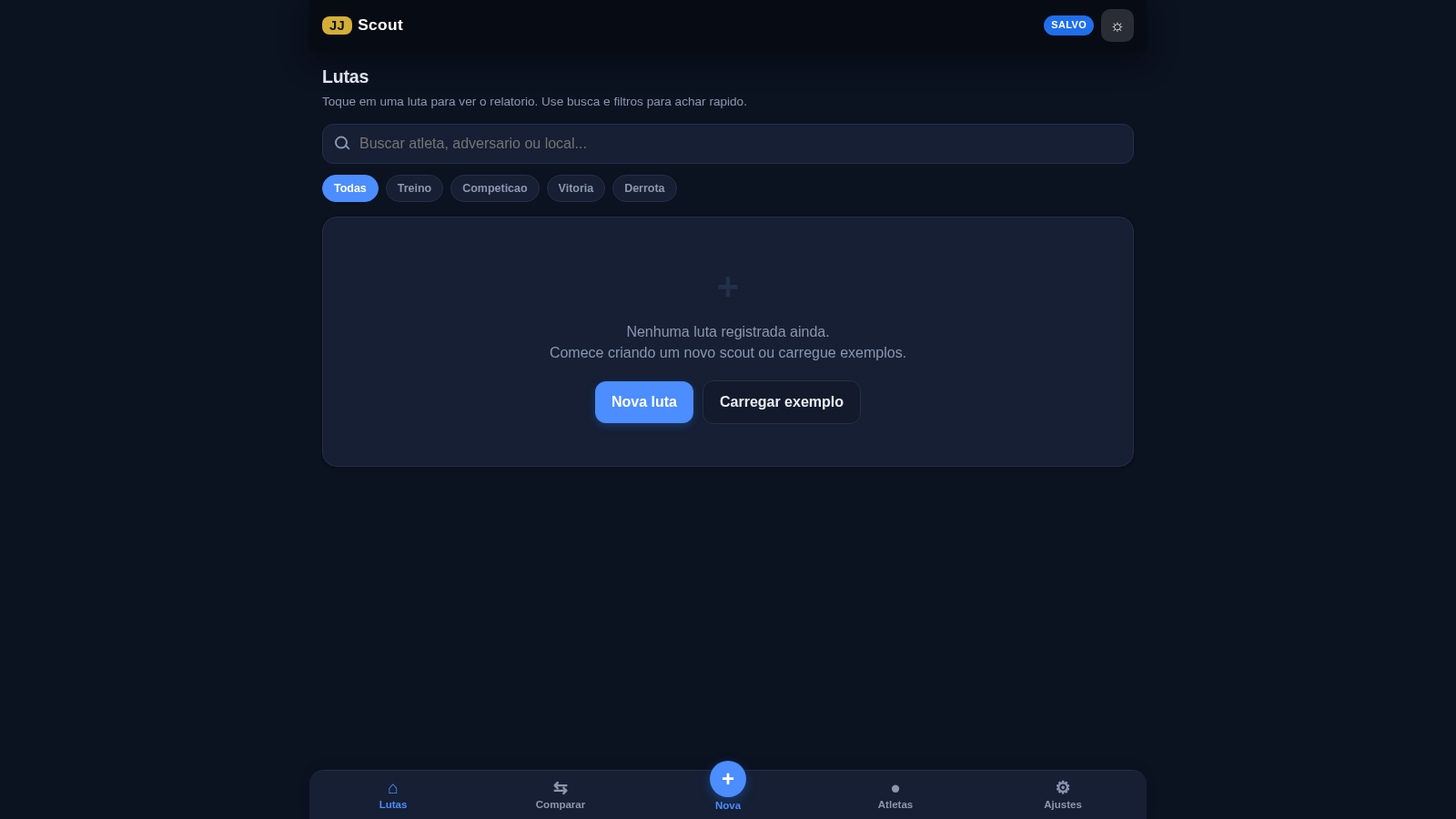
77BJJ STAT — ANALISE. ENTENDA. EVOLUA.
Scout de Jiu-Jitsu em um toque. Placar IBJJF, relatórios visuais e PWA offline.
 59
59ToolCraft - Free Online Tools
Free, fast, privacy-friendly online tools & expert guides - all in your browser.
 30
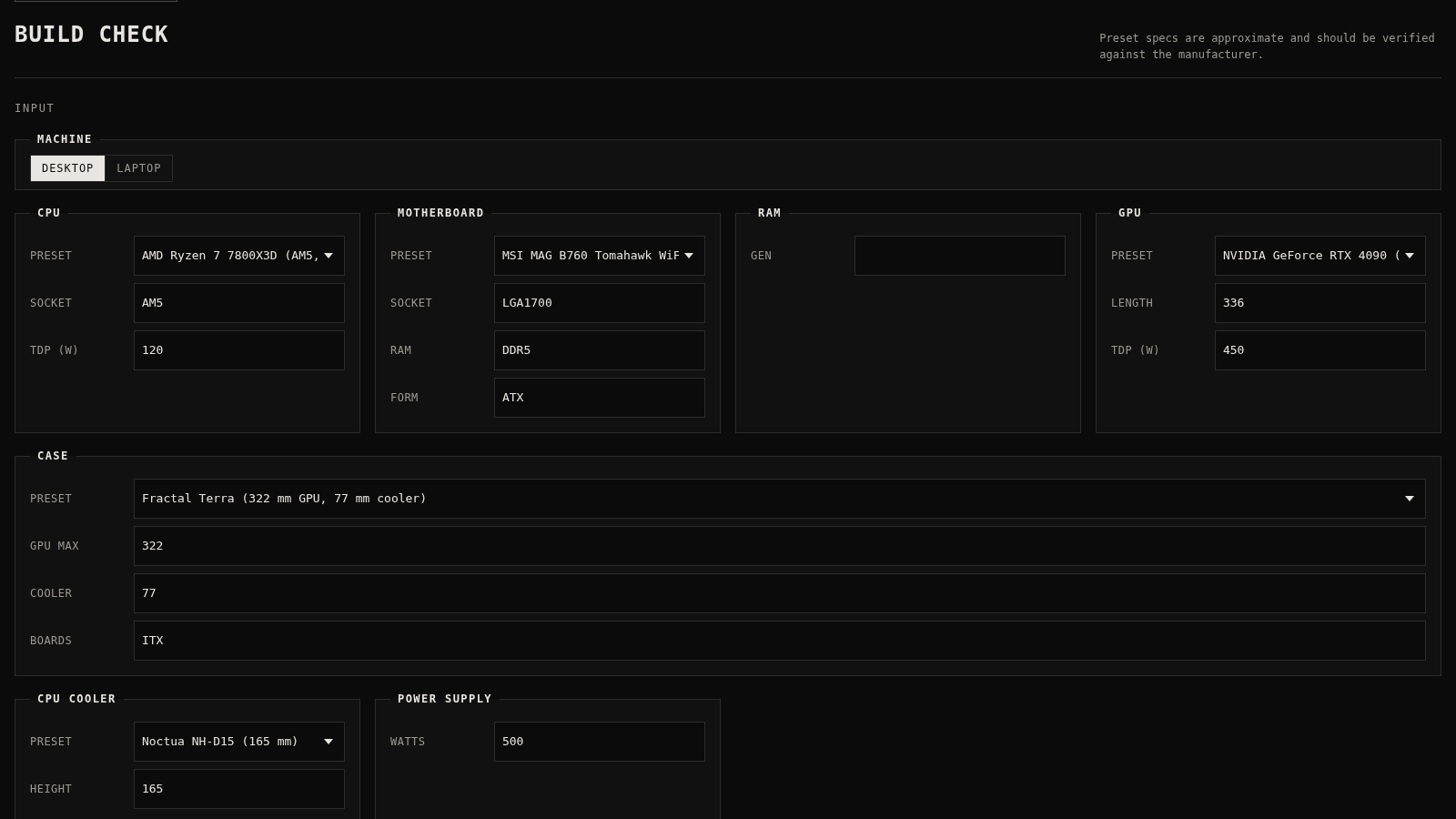
30PC Build Checker
Check desktop and laptop PC builds for compatibility, scores, and upgrades.
 22
22AuroraOS
A desktop OS inside a single HTML file - apps, terminal, games, music